
Extra options popup
-
Cloudpos Bedienen
- Categorie, product en subproduct
- Subproducten
-
Cloudpos Bedienen
- Instructie video
- Tafel Verkoop Index
- Kassa knop index
- Categorie, product en subproduct
- Extra opties popup
- Optie Popup – instructie video
- Wisselgeld teruggave zien
- Korting geven
- NR,NS uitleg
- Personeel ticket
- Tickets niet altijd Afprinten
- Kassa Optie Knoppen
- CloudPOS Prikklok Gebruiken
- Werken met Optie Pop-up
- Menu-optie
- Werken met My Freedelity
- Cloudpos Kassa Aanpassen
-
Cloudpos Webpanel
- CloudPOS Webpanel Gebruikersbeheer
- CloudPOS Prikklok Rapport via webpanel
- CloudPOS Webpanel: Pop-up subproducten configureren
- CloudPOS Webpanel: Producten configureren met opties
- CloudPOS Webpanel: een product aanmaken met open prijs
- CloudPOS Webpanel: Menu-optie
- CloudPOS Webpanel: Product met aantallen configureren
- Cloudpos Webshop
-
Control Cloudpos
- Categorie, product en subproduct
- Subproducten
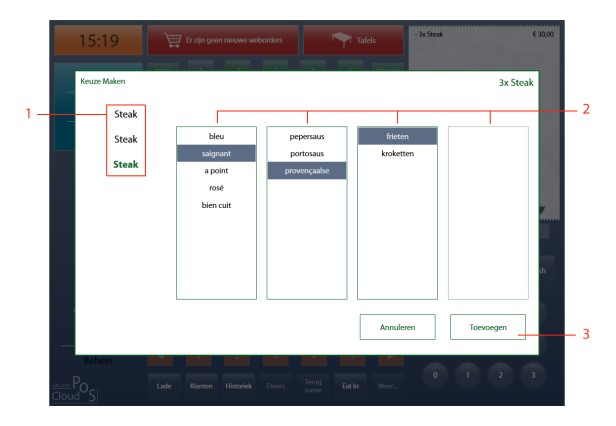
Click on the product on the screen with the need for additional options.
If you want to use the same product several times, you can first press a number and then click on the product.
In the image below, we pressed number 3 on the numeric keypad, followed by the product.
1. Number of times the product you can choose one by one to complete with options
2. Click on an option per column if there are options in the list
Repeat steps 1 and 2 until all products in the list of options have been completed.
3. When all options are complete, the add button will light up in green, and you can click this button
click to close the popup and add the chosen products and options.